

Map View - Overview
The map view in the Assets workspace shows your trailer assets on an interactive map, giving you a visual overview of asset locations and status across your fleet. Switch to map view using the view toggle at the top of the Assets workspace, next to List View.
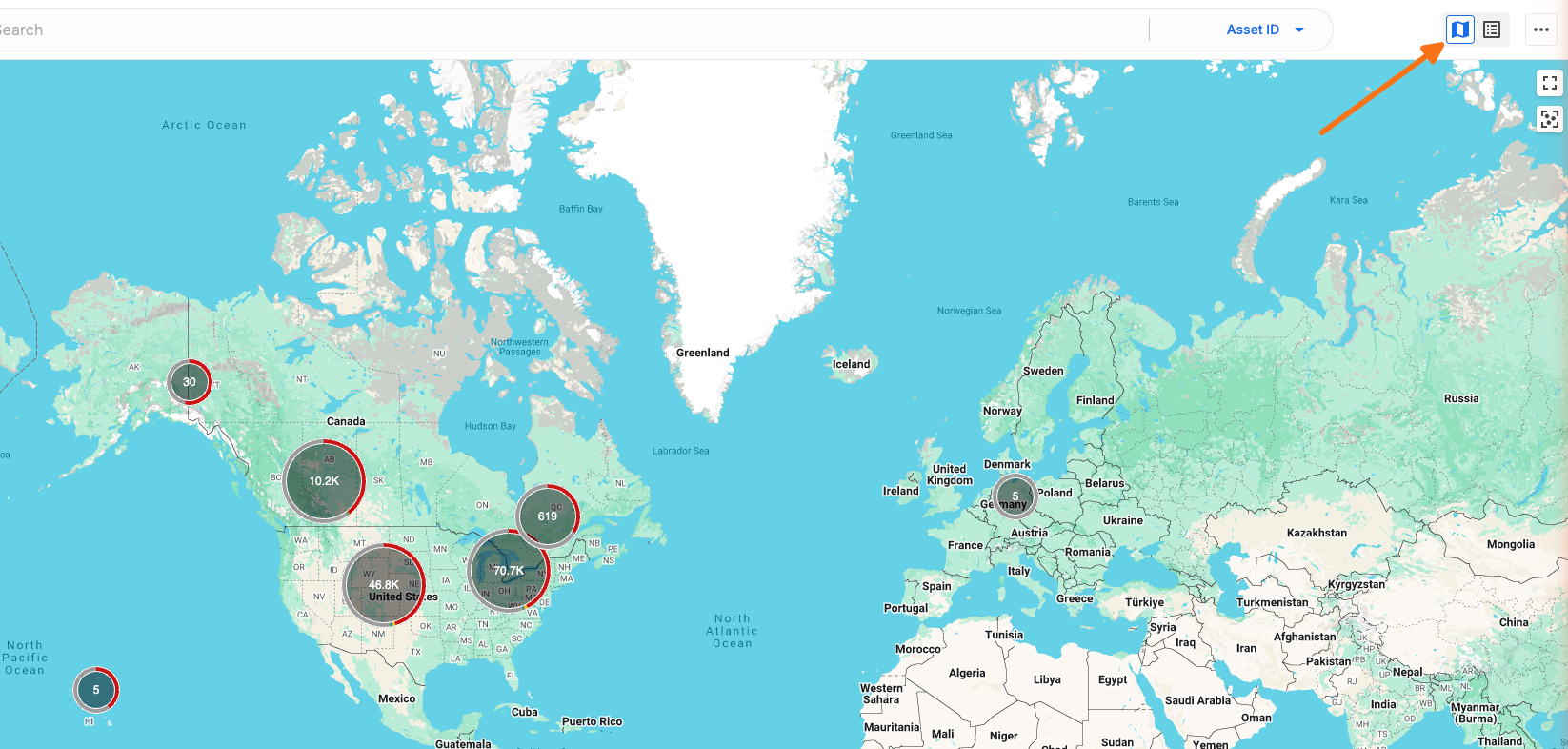

What you'll find on the map
Asset clusters — When assets are close together at the current zoom level, they group into a cluster showing a status breakdown by Health or Utilization.
Individual asset markers & tooltips — Zoom in far enough and clusters expand into individual markers you can hover or click for details.
Map layers — Switch between Default and Satellite map types and toggle the Geofences layer on or off.
Street View — Explore Google Street View imagery around your assets.
Map controls — Zoom, fullscreen, and recenter the map using the controls in the corners.
Filters and the map
Any asset filters you apply in the Assets workspace also affect the map view. The map shows the same filtered results as the Asset List and List View, i.e. if you filter by a specific health status and sensor type, the map updates to show only matching assets.
Related articles
Assets Workspace Overview – learn about the full Assets workspace and available views
Asset Search – find specific assets by name, ID, or other attributes
List View – view the same filtered asset set in a list format
Show and hide asset filters – narrow which assets appear on the map using filters
Asset filter types and how to use them – understand available filter options