

Create an Asset Tag
Asset tags let you label and group trailers with your own custom keywords. Once an asset is tagged, you can use that tag to filter the Assets workspace down to just the trailers you care about. This article covers how to add a tag to an asset from Asset Settings, and how to use tags to filter your fleet.
Before You Start
Adding or changing an asset's tags requires edit access to that asset's settings. If the Asset Settings field appears grayed out, you may not have the required permissions.
How to Create an Asset Tag
Asset tags are created directly on an asset. Typing a new unique tag name into the Asset Tags field creates that tag the first time it is used. It appears as a selectable option for other assets too.
Steps
From the left navigation, click Assets
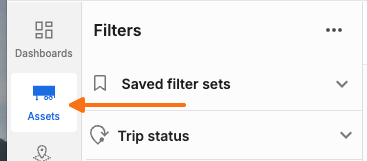
Find the asset you want to tag and click it (in Map view, List view, or Table view) to open its asset detail panel.
Click the gear (Settings) icon at the top of the asset detail panel to open Asset Settings.

In the Asset Identification section, click the pencil (edit) icon to make the fields editable.

Click into the Asset Tags field

Start typing a tag name. If it matches an existing tag, select it from the list. If it is new, entering it creates the tag for this asset.
Add as many tags as needed. The field accepts multiple tags per asset.
Click Save to apply the tags to the asset.
Learn how to filter by Asset Tags here