

Show and Hide Asset Filters
Use the filter panel toggle in the Assets workspace to expand or collapse the filter drawer. Showing the filter panel gives you access to all available filters for narrowing down your asset list. Hiding it frees up screen space when you don't need to adjust filters.
Where to find the filter panel toggle
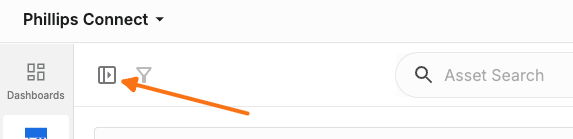
The filter panel toggle sits in the Assets workspace toolbar, to the left of the Asset search bar (above the map in Map View, or above the table in List View).
Expand filters — shows when the filter panel is collapsed
Collapse filters — shows when the filter panel is expanded
Hover over the toggle to see its current tooltip, which indicates whether clicking it will open or close the filter panel.
When the panel is collapsed and one or more filters are active, a filter icon with a small count badge appears next to the toggle. This badge shows how many filter categories currently have an active selection. It's a status indicator only; clicking it does nothing.
Expand the filter panel
Navigate to the Assets workspace from the main navigation.
Locate the filter toggle icon in the workspace toolbar, to the left of the Asset search bar.
Click the toggle. The filter panel opens on the left side of the screen, showing all available filters and any saved filter sets.
Collapse the filter panel
With the filter panel open, locate the same toggle in the toolbar.
Click the toggle. The filter panel closes and is removed from view.

Collapsing the panel does not clear your active filters. Your current selections stay applied to the asset list and map even while the panel is hidden, and the count badge next to the toggle reflects this.
Why hide the filter panel
Hiding the filter panel gives you more horizontal space for the asset list and map view. This is useful when:
You've finished setting filters and want to focus on the results
You're working on a smaller screen and need more room for asset details
You want to simplify the workspace while reviewing asset data
What to expect
State | What you see |
|---|---|
Collapsed | No filter panel on screen. The toggle shows the "Expand filters" tooltip. If filters are active, a count badge appears next to the toggle. |
Expanded | Filter panel visible on the left, showing all filters and saved filter sets. The toggle shows the "Collapse filters" tooltip. |