

Asset Filters Overview
Filters let you narrow the Assets workspace (List View and Map View) down to the assets you care about, for example, only assets currently in transit, low on cargo fill, or reporting a health fault.
Where to find filters
The Filters panel sits on the left side of the Assets workspace, next to the asset list or map. If the panel is collapsed, click the funnel icon at the top of the workspace to expand it. Hovering over this icon shows "Expand filters" or "Collapse filters" depending on its current state.

By default, the Filters panel only shows a set of commonly used categories, like Trip status, Utilization, Cargo status, and Asset type. The full set of filters available is larger than what's shown by default.
Viewing and customizing the full filter list
To see every available filter category, not just the ones visible by default, click the "..." (Filter options) icon at the top of the Filters panel and select Edit filter list. This opens a list of every filter category, each with:
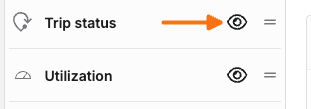
An eye icon showing whether the category is currently visible in the Filters panel (open eye) or hidden (crossed-out eye). Click the icon to toggle it.
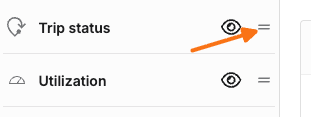
A drag handle to reorder categories, changing the order they appear in the panel.
Click Done to save changes, or Cancel to discard them.
For more on showing, hiding, and reordering filters, see Show and hide asset filters.
Applying filters
Expand any filter category to see its options, then select one or more checkboxes to apply it. The asset list and map update immediately, and a count badge appears next to "Filters" in the panel header showing how many categories currently have an active selection.
Filter options menu
Click the "..." (Filter options) icon at the top of the Filters panel to access:
Save selected filters: Save your current selections as a reusable set. Available only once at least one filter is active; opens a "Name your filter set" prompt to name and save it.
View all saved filter sets: Opens your saved filter sets. Available only once you've saved at least one.
Edit filter list: Opens the full filter category list described above.
Saved filter sets
The Saved filter sets section at the top of the Filters panel lists any sets you've saved, so you can reapply a common combination of filters without rebuilding it each time. If none exist yet, this section prompts you to save your current filters from the Filter options menu.
For more on saving, applying, and managing filter sets, see Save and filter sets.
Resetting filters
Once at least one filter is active, a Reset link appears next to "Filters." Click it to clear all active filter selections. This does not remove any saved filter sets.