

Filter by Asset Tag
Once assets are tagged, use the Asset tags filter in the Filters panel to narrow the Assets workspace down to just the tagged trailers you want to see.
Steps
From the left navigation click Assets
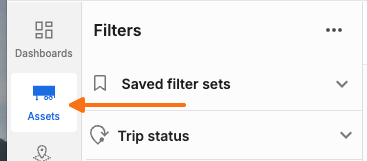
In the Filters panel on the left, click the "..." (Filter options) icon and select Edit filter list.
Find Asset tags in the list and click its eye icon to make it visible
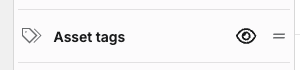
Asset tags are hidden from the Filters panel by default
Click Done to save changes.
Expand the Asset tags filter in the Filter panel.
Use the Search tags field to find a specific tag, or scroll the checkbox list. Each tag shows a count of how many assets currently have it.
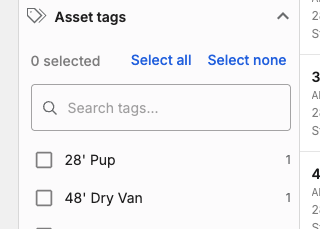
Select one or more tag checkboxes. The asset list and map update immediately to show only matching assets.
Use Select All or Select None to quickly select or clear every tag, or click Reset at the top of the Filters panel to clear all active filters.