

List View - Table Layouts
Use the Table layout menu in the table header to save, load, and manage your preferred column arrangements.
Save a new layout
Arrange the table by showing, hiding, and reordering columns as you prefer.
Click Table layout in the header, then choose Save table layout.
Enter a name for the layout, then choose whether to mark it Shared and whether to Set as Default.
Click Save.
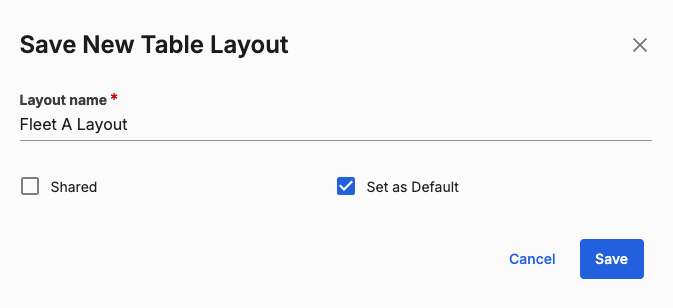
What a layout saves
A saved layout stores the column order and which columns are visible. It doesn't store column widths; widths revert to their default when you reopen a saved layout.
Load a layout
Open the Table layout menu and select a saved layout from the list. The table updates immediately to match the saved order and visibility.
Shared vs. private layouts
Private layouts appear under All table layouts and are visible only to you.
Shared layouts appear under Shared table layouts and are available to your organization.
Whether a layout is shared or private is set when you save it, using the Shared checkbox in the save dialog, not something you choose afterward.
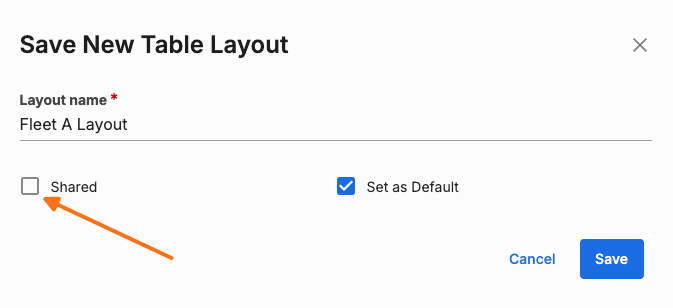
Edit or delete a layout
Open the Table layout menu, find the layout you want to manage, and use the edit or delete action next to it. Editing lets you rename a layout or change its default setting. Deleting removes it permanently. You can only modify layouts that you created or that your role permissions allow you to manage.
Related Articles
List View - Exporting