

List View - Exporting
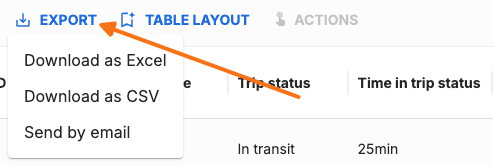
Click the export button in the table header to download the current asset list. The export menu offers several options depending on your table and organization settings:
Download as Excel — exports the visible rows and columns as an .xlsx file.
Download as CSV — exports the visible rows and columns as a .csv file.
Send by email — available for server-side exports; sends a download link to your email address.
What gets exported
Exports respect your current filters, search, and column visibility. If the table has no matching rows, exporting is blocked and a message explains that the table is empty.
Large exports may be processed server-side. When this happens, you receive an email with the download link instead of an immediate file download.
Related Articles
Was this helpful?
Was this helpful?