

List View - Columns
Use the Columns button in the table header to control which columns appear in your List View and in what order.
Showing and hiding columns
Click Columns to open a panel with a searchable checklist of every available column. Checked columns are visible in the table; unchecked columns are hidden. Use the search box at the top to find a specific column by name, or use Show/Hide All to toggle everything at once. Reset returns the panel to its previous state.
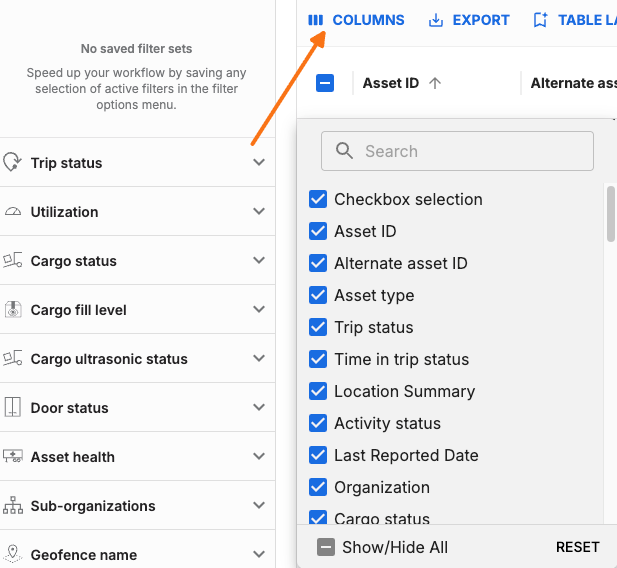
Not all columns can be toggled. Sensor-dependent or role-restricted columns may be omitted from the panel entirely when the underlying data is not available to your organization or role.
Available columns
Beyond the columns covered in List View - Overview, these are hidden by default and can be turned on from the Columns panel:
Alternate asset ID, VIN, Product Name, Product Code
Associated (with gateway device), IMEI, Battery, Power, Activity status
Street address, City, State, Zip, Latitude, Longitude
Geofence Name, Geofence Entry
Asset Tags, Asset Admin Tags, Agreement type
Last Cargo Image, Floor Coverage %, Volume Filled %, ABS Fault Status
Sensor health columns: Air Bag health, Air Tank, ATIS health, Cargo Ultrasonic status, Door status, CargoVision status, Liftgate health, Light Circuit health, ATIS Regulator health, Wheel end health, TPMS health, Dual Imbalance health, Brake Wear, Brake Health, T/T Pair, Roll Stability
Share Type, Share Organization, Share Group Name, Share Start Date, Share End Date
Tires per axle, Axles, Length (ft), Door Type, GPS Time
Reordering and resizing
Drag column headers left or right to reorder the table. Resize a column by dragging the edge of its header.
What's saved
Your column order and visibility choices are saved automatically and persist across sessions.
Related Articles
List View - Table Layouts
List View - Exporting