

Asset Details — Usage
The Usage tab shows a day-to-day utilization overview for a trailer, including how much of the asset's time is spent moving in transit and a detention history section.
What appears on the Usage tab
The tab displays a date-range picker, a Utilization summary, and a Dwell history table.
Date range – Shown as a badge (for example, LAST 7 DAYS) with an editable date-range picker next to it, the same control used on the Trips tab.

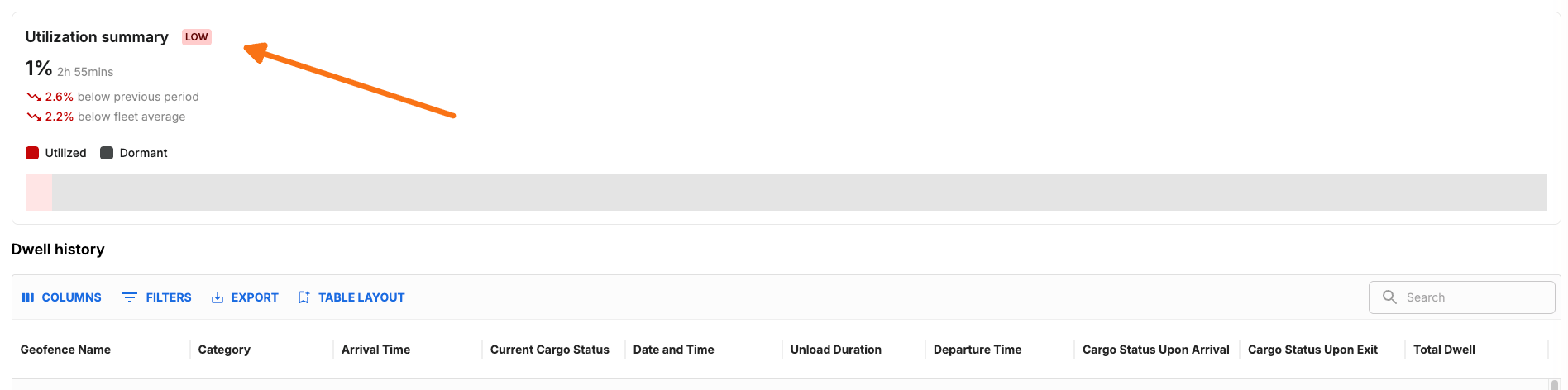
Utilization summary – Shows the utilization percentage alongside the actual time value, a severity badge, and two comparison stats: how the period compares to the previous period and to the fleet average.
Below that is a visual bar with a Utilized/Dormant legend. If utilization data isn't available, the field shows
--.
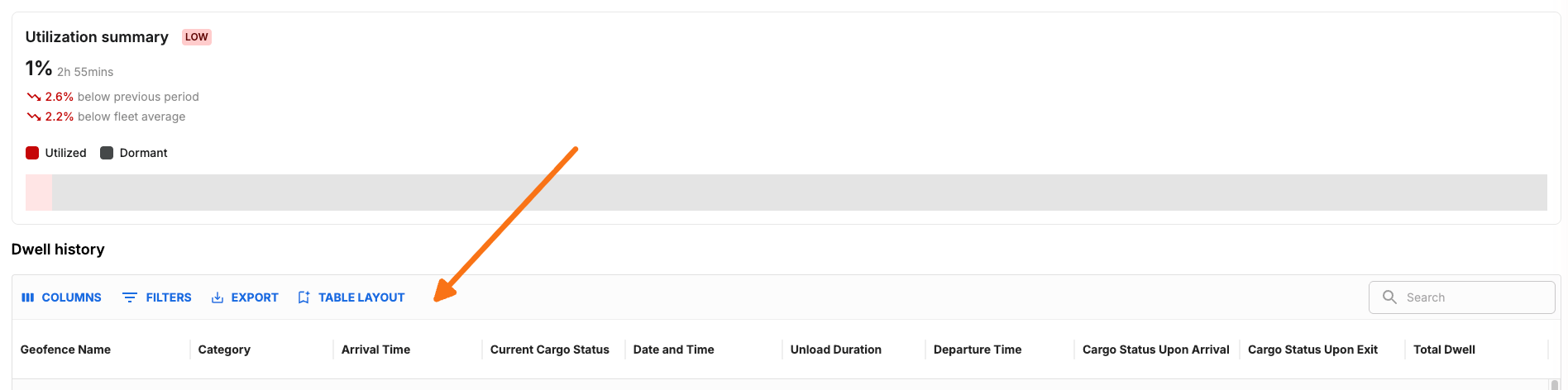
Dwell history – A full data table of dwell events for the asset, with the same Columns/Filters/Export/Table Layout toolbar used elsewhere in the app. Columns include Geofence Name, Category, Arrival Time, Current Cargo Status, Date and Time, Unload Duration, Departure Time, Cargo Status Upon Arrival, Cargo Status Upon Exit, and Total Dwell.
When the tab is available
The Usage tab is visible only when the utilization card feature is enabled and the asset has a non-null utilization metric. If the feature is disabled or the asset has no utilization data, the tab does not appear.
How to open the Usage tab
From the Assets workspace, click any asset row in List View to open the Asset Details page directly on this tab if the asset has utilization data. From Map View, click an asset marker or sidebar item to open the Asset Summary Panel, then click Usage to jump to this tab.