

Asset List
The Asset List is the panel on the left side of Map View. It shows your fleet as a scrollable list of assets, with a total result count, a sort order control, and a status summary for each asset. The number of assets in the Asset List updates automatically based on the criteria you select in the Filters panel and Asset Search bar, and is shown as a results total directly above the sort control.
Asset sort order
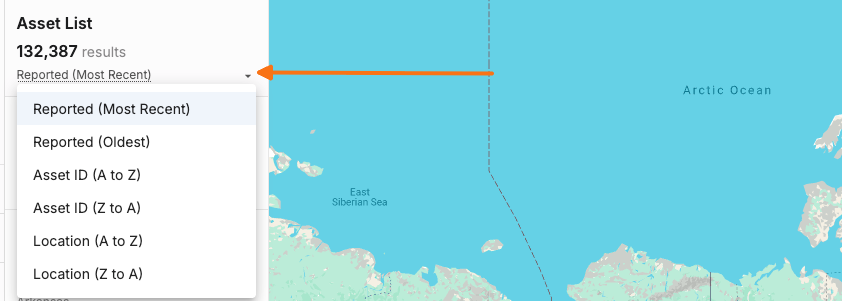
Above the asset rows, a sort control lets you change how the list is ordered. Click the control to open the dropdown and select one of the following options:
Reported (Most Recent) — sorts assets by most recent report first (default)
Reported (Oldest) — sorts assets by oldest report first
Asset ID (A to Z) — sorts alphabetically by Asset ID in ascending order
Asset ID (Z to A) — sorts alphabetically by Asset ID in descending order
Location (A to Z) — sorts by asset location in ascending alphabetical order
Location (Z to A) — sorts by asset location in descending alphabetical order
Asset row information
Click any asset row to expand additional details in the Asset Summary Panel. See Asset Summary Panel – Overview for what that panel shows.
Each row represents one asset and displays the following:
Asset ID — the unique identifier for the asset, shown in uppercase
Last reported — when the asset last reported data
Current status — the asset's current status based on movement, geofence, and address state:
Moving inside <geofence name> — when the asset is in motion inside a geofence
Stopped inside <geofence name> — when the asset is stationary inside a geofence
Heading <direction> at <speed> in <city, state> — when the asset is moving outside a geofence
Stopped at <full address> — when the asset is stationary outside a geofence
No data - when the asset has not reported any location or status information
Because each row displays real asset IDs, addresses, and location data, no screenshot is included here. A full row typically looks like a bolded Asset ID, a "time ago" last-reported stamp, the asset type, and then one of the status lines above.
Asset List and Filters
The Asset List adapts to the filters you apply in the Filters panel. When you change any filter, such as Asset Type, Trip Status, Asset Health, or Geofence, the list refreshes to show only the assets that match your filter criteria, including total results, and the sort order is applied to the filtered results.
Related articles
Assets Workspace Overview — learn about the full Assets workspace
Map View — visualize assets on the interactive map
Asset Search — find specific assets by ID, IMEI, or VIN
List View — view assets in a sortable table with columns and bulk actions